Dark Mode
Dark mode switches from using light colored background with dark colored text to using dark colored backgrounds with light colored text. It is designed to be an alternative mode to the default (or light) mode.
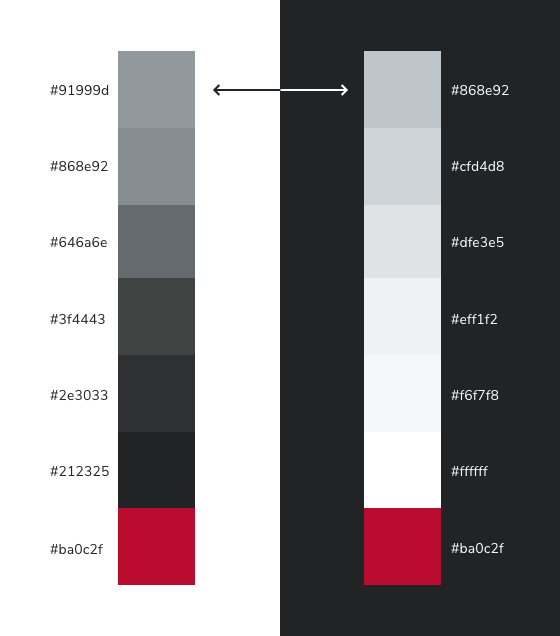 Primary colors values map from light mode (left) to their corresponding dark mode values (right).
Dark mode is designed to support comfort and usability across different environments and has become a standard user expectation.
- Supports accessibility by reducing glare and offering an alternative for users sensitive to bright interfaces.
- Improves user comfort in lowlight environments by providing a softer, less visually intense experience.
- Adapts to different device contexts, especially mobile, where users frequently switch between bright and dim settings.
By offering both light and dark modes, BUX helps ensure users can choose the interface that best fits their needs, preferences, and device contexts.
Considerations for media
To maintain a good user experience, review your website to ensure all logos, icons, and data remain legible in dark mode.
Logos
- Remove white backgrounds and use transparent backgrounds where possible.
- In your Site Footer, provide an alternate unit logo that works on a dark background. Check the DAM for approved unit logo variants (often included in .zip files).
Icons
- Confirm icons map from scarlet (light mode) to white (dark mode).
- If using BUX UI icons as a webfont, ensure icons inherit color from the theme.
- If using image-based icons (.jpg, .png, etc.), provide a dark mode version (white with transparent background) to display based on the active color mode.
Data visualizations and illustrations
- Review charts for visibility. Ensure strokes, fills, gridlines and labels have sufficient contrast with the background.
Photos
- No changes are required! Photos should remain natural and unchanged.
SVGs
If your site uses SVGs, you may need to consider how they should appear in a dark color scheme, since the background the SVG is on will often change. The primary background color in BUX is white (#ffffff) in light mode and Gray Shade 80 (#212325) in dark mode.
To make an SVG's colors automatically change based on the color scheme, you can use BUX color CSS variables to define the colors that your SVG uses.
Custom icons
If you implement custom icons in your site, or perhaps you've implemented standard or UI icons as SVGs in your site, you can use BUX's semantic color variable color-icon-primary . This variable points to scarlet in light mode and switches to white in dark mode, which addresses these one-color icons perfectly.
Here's chevron-right as an SVG:
<svg xmlns="http://www.w3.org/2000/svg" viewBox="0 0 127 218">
  <path d="M91,109L0,18,18,0l109,109L18,218,0,200l91-91Z"/>
</svg>
To define the fill color on this SVG's single path, you can do it directly in the SVG markup:
<svg xmlns="http://www.w3.org/2000/svg" viewBox="0 0 127 218">
  <path fill="var(--color-icon-primary)" d="M91,109L0,18,18,0l109,109L18,218,0,200l91-91Z"/>
</svg>
Or, you can add a class to the SVG and target it from your stylesheet.
<svg xmlns="http://www.w3.org/2000/svg" viewBox="0 0 127 218" class="icon-chevron-right">
  <path d="M91,109L0,18,18,0l109,109L18,218,0,200l91-91Z"/>
</svg>
svg.icon-chevron-right {
  fill: var(--color-icon-primary);
}
Multiple colors -- a more complex example
Here's the default SVG markup for the Block O (with the d attribute truncated for readability). It contains three path elements: the first is the solid scarlet block O; the second is the outer outline; and the third is the inner outline. Note that each path's fill attributes define their colors directly as #ba0c2f (scarlet) and gray shade 40 (#646a6e).
<svg xmlns="http://www.w3.org/2000/svg" viewBox="0 0 76 100">
  <path fill="#ba0c2f" d="m20.33 ..." />
  <path fill="#646a6e" d="M1.639 ..." />
  <path fill="#646a6e" d="M28.663 ..." />
</svg>
On a white background, this appears as:

On a dark background, however, the gray outlines are difficult to see:

Per Ohio State University's brand guidelines for our logo, the Block O's gray outline should change to white when it appears against a dark background. We can accomplish this in a few different ways.
With a custom CSS variable in the SVG markup
You can edit the SVG's markup to use your own CSS variable name in the fill attribute (or stroke if that's how your SVG is structured). Then, you can point that variable at the appropriate light color scheme BUX color variable, and use a media query to switch it to the appropriate dark color scheme BUX color variable.
Here, we've also added a class to the SVG so we can reference it in our stylesheets.
<svg xmlns="http://www.w3.org/2000/svg" viewBox="0 0 76 100" class="block-o">
  <path fill="#ba0c2f" d="m20.33 ..." />
  <path fill="var(--block-o-outline-color)" d="M1.639 ..." />
  <path fill="var(--block-o-outline-color)" d="M28.663 ..." />
</svg>
Then, in your styles, you can define that variable either in the :root or scoped to your SVG.
svg.block-o {
  --block-o-outline-color: var(--color-primary-gray-shade-40);

  @media (prefers-color-scheme: dark) {
    --block-o-outline-color: var(--color-primary-white-white);
  }
}
When your SVG renders, it will use that block-o-outline-color variable to look up its appropriate color based on the color scheme:

Using the fill and stroke properties in CSS
You can also move the color definitions out of the SVG markup entirely, and instead set the colors in your stylesheets using selectors for your SVG's elements and the fill and stroke properties.
<svg xmlns="http://www.w3.org/2000/svg" viewBox="0 0 76 100" class="block-o">
  <path class="block-o--scarlet-block" d="m20.33 ..." />
  <path class="block-o--outline" d="M1.639 ..." />
  <path class="block-o--outline" d="M28.663 ..." />
</svg>
svg.block-o {

  .block-o--scarlet-block {
    fill: var(--color-primary-scarlet-scarlet);
  }

  .block-o--outline {
    fill: var(--color-primary-gray-shade-40);

    @media (prefers-color-scheme: dark) {
      fill: var(--color-primary-white-white);
    }

  }
}
Note: using a CSS post-processor in a build step
You can remove the need for the media query block with the light-dark() CSS function. However, this function is relatively new and only supported by ~86% of browsers as of July 2026. Build tools like LightningCSS, though, can automatically polyfill this function for you, making your development experience simpler and faster. Internally, BUX uses LightningCSS when compiling its bundles. If your site involves a build step or CSS compilation/optimization step, you could look at polyfilling light-dark as well.
Implementation
Dark mode in BUX works automatically based on a user's device or browser settings. If a user has dark mode turned on at the system level, any application using BUX tokens will display the dark theme. No additional action is needed from the user or the implementing unit—BUX simply follows the device or browser preference.
As of the 1.5 release, the Sass color variables have been replaced with CSS variables. If your project includes any custom styling overrides in your codebase, you'll need to update those overrides to use the new CSS variables for dark mode to function correctly. Sass variables remain available for backwards compatibility, but they no longer control color behavior in dark mode. It is a one-to-one swap — for example, $scarlet becomes var(--scarlet).
These new variables are mapped to light and dark theme values and get updated automatically when the theme switches. If you need to manually override a color in dark mode, simply target the bux-dark-theme class that is applied to the top level of the DOM.
This documentation covers the how of dark mode in BUX products, including implementation patterns and considerations for media across interfaces. It translates design intent into practical, usable guidance.
For the underlying brand rationale — design principles, primary and utility color mapping, and the Scarlet decision tree — visit the Brand Center's dark mode documentation.
Explore Dark Mode Design Foundations in the Brand Center